Inkwing

A friendly little owl who lives in your Google Docs and helps young writers tell their stories.

As kids write, Inkwing reads along and offers gentle ideas, kind suggestions, and lots of "keep going, you've got this!"

Chrome / Edge extension · free · bring your own OpenAI key

See it in action

Inkwing rides along in a friendly sidebar, right next to the story.
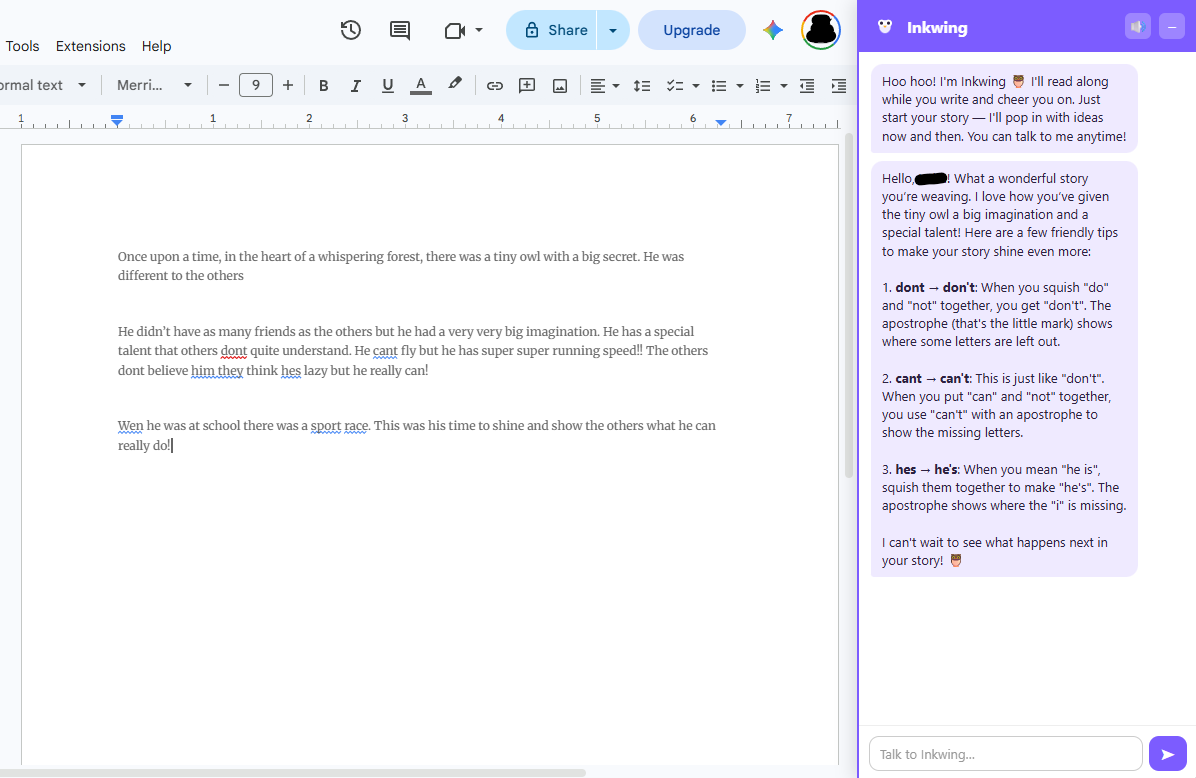
A young writer's story open in Google Docs with the Inkwing sidebar giving gentle, encouraging spelling tips like 'cant → can't'.
Kind, gentle coaching. Inkwing cheers the story on and offers little tips — never a red pen.
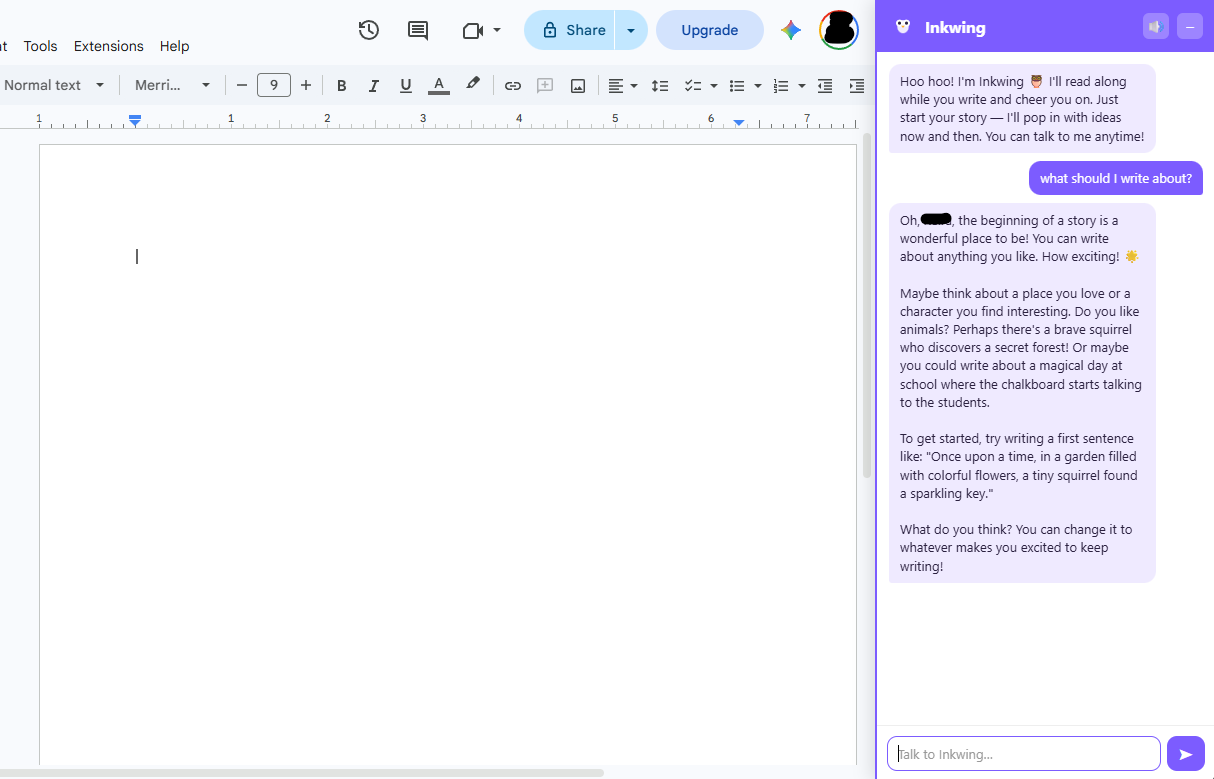
The Inkwing sidebar answering a child's question 'what should I write about?' with warm story ideas and a first sentence to try.
Ideas on demand. Stuck for a start? Ask Inkwing and it sparks ideas to get the words flowing.

How it works

Three little steps and Inkwing is perched in the corner of your doc, ready to help.

📦 Step 1

Install the owl

Download the zip and load it into Chrome. It takes about a minute — no app store, no account.

🔑 Step 2

Add your key

Paste in your own OpenAI API key. It stays on your computer and powers Inkwing's ideas.

✍️ Step 3

Start a story

Open any Google Doc and write. Inkwing reads along and pipes up with friendly help.

What Inkwing does

A patient writing buddy, never a grader.

💡

Ideas when you're stuck

"What if the dragon was actually shy?" Little sparks to get the story moving again.

🌱

Gentle suggestions

Kind nudges on a describing word or a next sentence — always the writer's choice to use.

🎉

Real encouragement

Cheers on the good bits so young writers feel proud and want to keep writing.

🦉

Kid-friendly voice

Warm, simple language pitched for young storytellers — never a red pen.

Installing Inkwing

A grown-up should do this part once. It takes about five minutes.

  1. Download & unzip. Click the download button above to get the Inkwing zip, then unzip it somewhere you'll remember, like your Desktop. You'll get a folder containing a file called manifest.json.
  2. Open the extensions page. In Chrome, go to chrome://extensions. In Edge, go to edge://extensions. (Type or paste it into the address bar.)
  3. Turn on Developer mode. Flip the Developer mode toggle on that page (top-right in Chrome, bottom-left in Edge).
  4. Load the owl. Click Load unpacked and choose the unzipped folder — the one that contains manifest.json.
  5. Pin Inkwing. Click the puzzle-piece icon in your browser's toolbar, then the pin next to Inkwing, so the owl is always visible.
  6. Add your OpenAI key. Right-click the Inkwing icon and choose Options. Paste your key from platform.openai.com/api-keys and click Save. (You'll need billing set up on your OpenAI account — usage is only pennies.) While you're there, you can add your child's name and age so Inkwing pitches its help just right. Your key is stored only on this computer.
  7. Open a Google Doc and write! Look for the purple owl tab on the right edge of the page and click it to open Inkwing. It rides along and pipes up on its own as your child writes.
🔑
You bring your own OpenAI API key so you're always in control of usage and cost. Don't have one yet? Create a free account at platform.openai.com and make a key.

🛡️ Inkwing runs entirely in your browser. Your child's writing and your key stay on your computer — they're only ever sent to OpenAI to generate Inkwing's replies.